
PlayDock Arcade
support.
Get help with the iPhone-first, guest-only PlayDock Arcade app: 12 included games, movement controls, media downloads, and optional casting.
Where can we help?
First play
iPhone placement, camera permission, lighting, and player framing.
Games & downloads
What is included, first-time media downloads, storage, and offline replay.
Movement controls
Camera view, body and hand detection, and gameplay troubleshooting.
Optional casting
Wired displays, Local Network permission, receivers, and disconnects.
App privacy
On-device camera processing and Cloudflare media-request records.
Store orders
Help with a PlayDock Dock order or an earlier website purchase.
Switching from Nex?
Keep your TV. Put your compatible iPhone to play.
Answers, fast.
First play
What do I need to play?
An iPhone running iOS 17 or later, a stable place to prop it, a clear and well-lit play space, and Camera permission. A TV, receiver, PlayDock Dock, cable, or other accessory is optional.
How do I start?
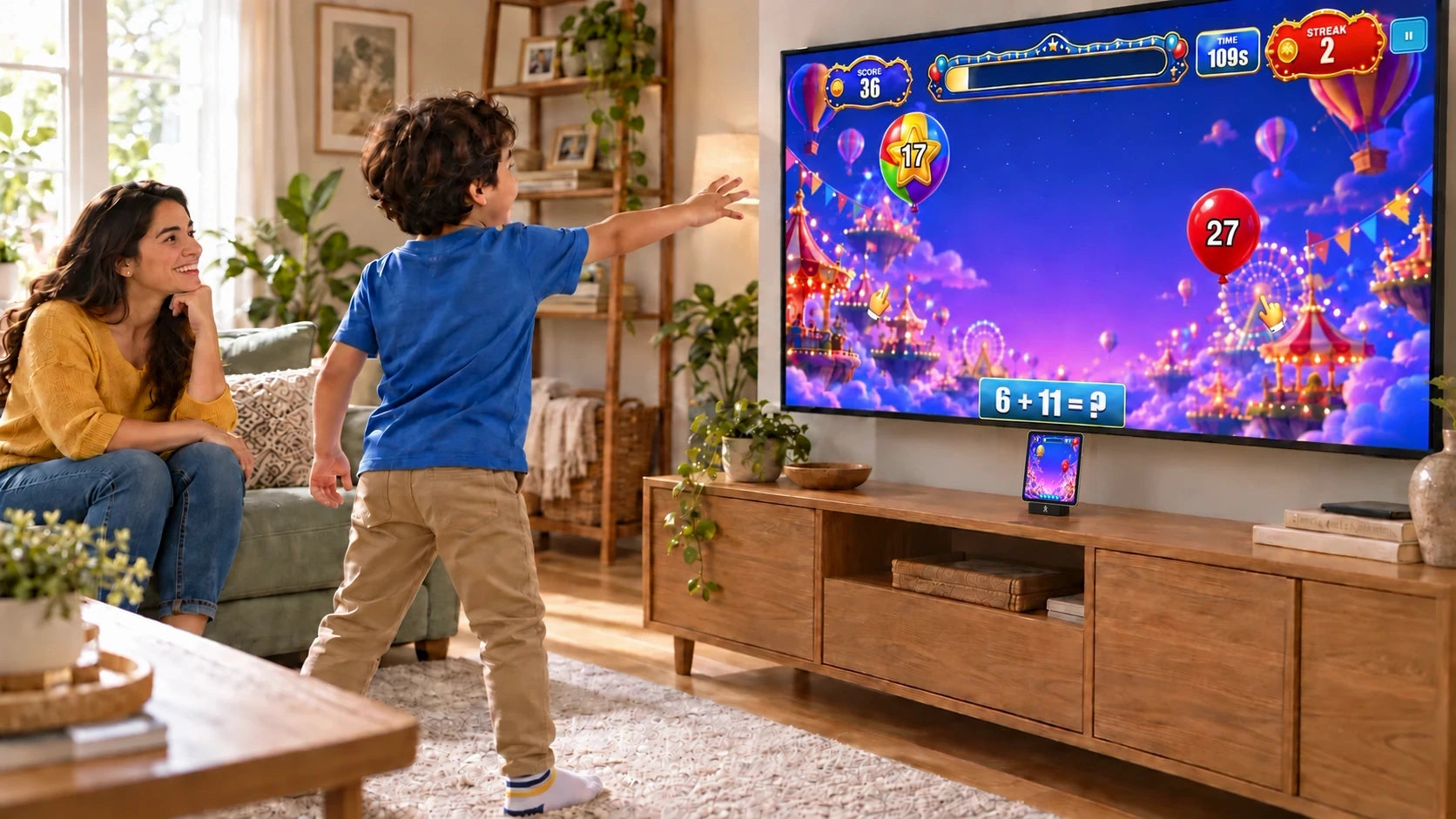
Open PlayDock Arcade, follow the on-screen camera and player-framing steps, prop the iPhone where it can see the player, and choose a game. Balloon Pop can begin with its embedded media. A game that needs a first-time media download shows its size and asks before downloading.
Why does PlayDock need Camera permission?
The camera translates body and hand movement into controls. Frames are processed on the iPhone and discarded during play; raw camera video is not uploaded for movement tracking. Without Camera permission, movement controls cannot run.
Does the iOS app require an account or sign-in?
PlayDock Arcade for iPhone is designed for guest play. It has no PlayDock account, sign-in, subscription, or in-app purchase path. Contact us for current release availability.
Games & downloads
Which games are included?
PlayDock includes 12 games with no subscription or in-app purchase. Browse the included titles in PlayDock Arcade.
What is downloaded?
Executable game code, the PlayDock SDK, tracking models, and WebAssembly are embedded in the signed app. Balloon Pop media is embedded as well. Games that need a media download receive hash-verified, inert art, audio, video, and 3D models from Cloudflare R2.
Do I need internet every time I play?
No. Internet is needed for a game's first media download when its media is not embedded in the app. Once verified media is stored on the iPhone, it does not need to be downloaded again for later play. Optional wireless casting uses your local network.
A media download will not complete. What should I check?
Keep PlayDock open, confirm the iPhone has a stable internet connection and enough available storage, then retry from the game tile. If the issue continues, include the game name, displayed size, error text, iPhone model, and iOS version when contacting support.
Movement controls
The game is not detecting my movement.
Use a well-lit space, clean the camera lens, keep the full player in frame, and move back far enough that hands and feet stay visible. Avoid strong backlighting and make sure nobody is blocking the camera.
My movement feels delayed.
Close other demanding apps and let the iPhone cool if it is warm. If you are using an optional TV or monitor, turn on that display's Game Mode and compare against phone-only play to isolate display latency.
The app or one game stopped responding.
Return to the catalog and reopen the game. If that does not help, close and relaunch PlayDock Arcade. Contact support with the game name, what appeared on screen, and the step that triggered the issue.
Optional display and casting
Do I need a TV, receiver, or PlayDock Dock?
No. Every included game is playable on the iPhone. A compatible wired display or a PlayDock receiver can provide a bigger screen but is not required.
Why is Local Network permission requested?
Only wireless casting uses Local Network access. PlayDock asks for it when you choose casting so the app can find and connect to a receiver on your network. Denying it does not prevent phone-only play.
What is sent while casting?
For the casting session you start, PlayDock sends the rendered game picture, which can include the camera view, and game audio to the receiver you select over your local network. Stop casting to end that transmission.
Will a wired display work with every iPhone?
No. Wired external-display support varies by iPhone model, adapter or cable, iOS version, and display. Phone-only play remains available on supported iPhones even when wired video output is unavailable.
Privacy
Does PlayDock use advertising or tracking?
No. The current release has no advertising and does not track people across apps or websites owned by other companies.
What is the App Store privacy disclosure?
PlayDock declares Usage Data → Product Interaction and Diagnostics → Other Diagnostic Data, both linked to you, for App Functionality, with Tracking: No. This conservative disclosure covers Cloudflare R2 media-object interactions retained in developer-visible Operations analytics for 31 days plus request, reliability, and security data. The request is not associated with a PlayDock account or advertising identifier. See App Privacy for camera, retention, service-data, and optional-casting details.
Where is the complete iOS app privacy policy?
Read PlayDock Arcade App Privacy for camera, on-device storage, media-delivery, retention, and optional-casting details.
Switching from Nex
What do I need to switch to PlayDock?
Your compatible iPhone supplies the camera and processing. PlayDock connects it to your TV through HDMI. Check your iPhone model first; you will also need an HDMI cable and a USB-C power source. The PlayDock box contains the Dock only.
Can I use my current TV?
You can use a TV with an available HDMI input. Connect PlayDock, select that HDMI input, and position the upright iPhone so its camera can see the player. Follow the setup guide to get started.
Do I need a Nex Play Pass for PlayDock?
No. PlayDock Arcade has its own library of 12 included games, with new games free every month and no subscription.
Store orders and earlier offers
Is a separately purchased PlayDock Dock required for the iOS app?
No. The Dock is optional for phone-only play. The iOS app's 12 included games can be played on the iPhone without one.
What comes in the PlayDock box?
The box contains the PlayDock Dock only. A compatible device, TV, HDMI cable, and USB-C power source are separate.
When will a Dock order ship?
The Dock is in stock and ships within five days of ordering. Delivery timing depends on the destination and carrier.
What about an earlier website purchase?
Earlier website offers are separate from PlayDock Arcade for iPhone. The app does not require an account or prior purchase to access its 12 included games. Contact support with the order email and order number for help with an existing purchase.
I need help with a Dock order, return, or warranty.
Email support with the order number, purchase channel, product, and a description of the issue. Store and retail orders follow the terms that applied to that purchase; support can identify the correct path without changing the iOS app experience.
Message our
support team.
Tell us what happened, which game or feature you were using, what you already tried, and what appeared on screen.
- Include: iPhone model, iOS version, PlayDock version, game name, and exact error text.
- For a store order: include the order number and purchase channel.
- Protect privacy: do not send camera recordings, passwords, payment details, or another person's personal information.
Email support@playdock.io.
Need the privacy details?
See the exact iOS data practices for camera processing, media requests, 31-day R2 records, and optional casting.