
Let’s get
PlayDock ready.
Connect your Dock, open PlayDock Arcade, and make room to move.
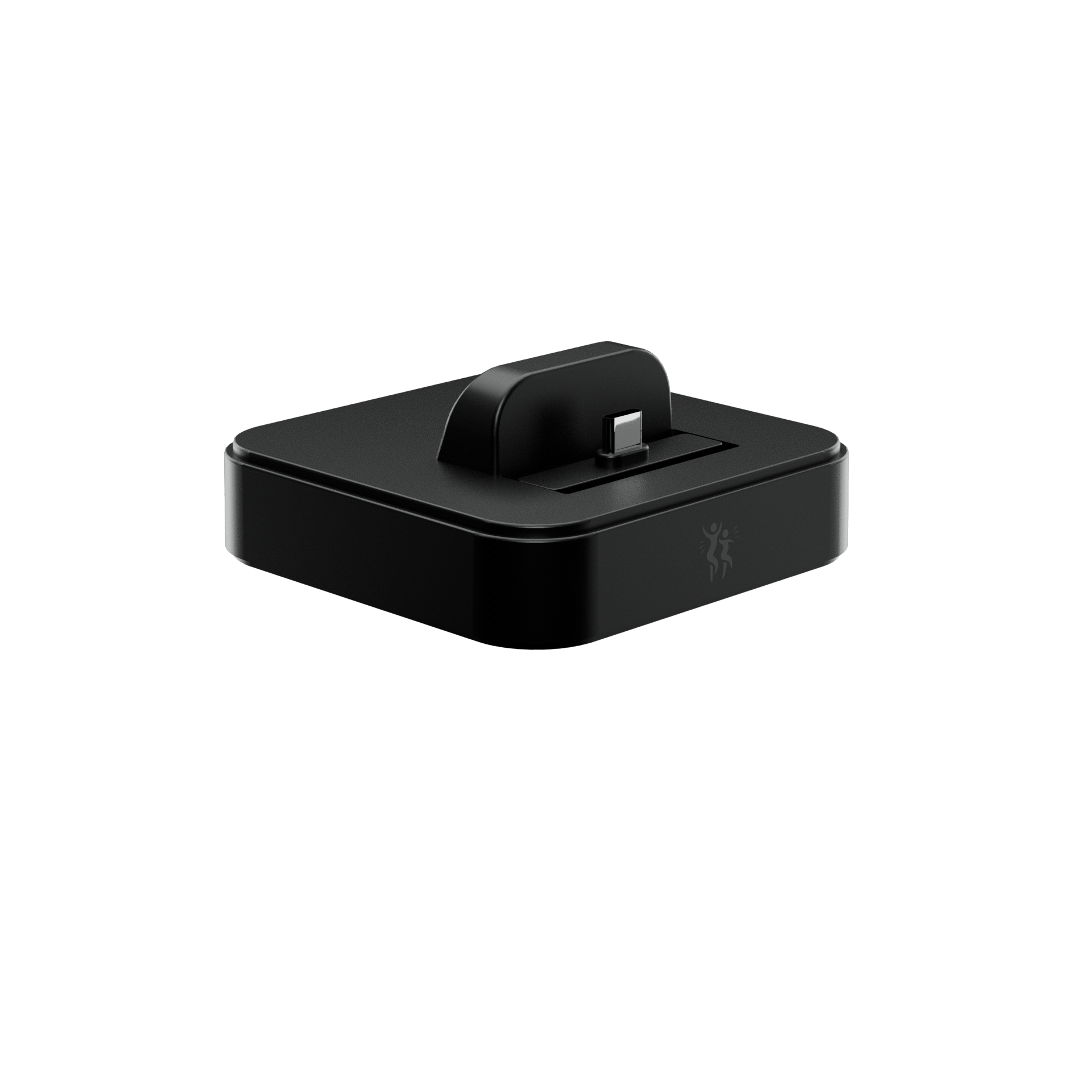
Before you start.
The box contains the PlayDock Dock only. You’ll also need:
- A compatible device with PlayDock Arcade
- A TV or projector with an available HDMI input
- An HDMI cable
- A USB-C power cable and power source
- Internet for app installation and first-time game media downloads
Devices, cables, TV, and power source are separate.
Get the app.
Install PlayDock Arcade on your compatible iPhone or iPad. No PlayDock account or sign-in is needed.
The iOS App Store download link will be added here.
Connect to your TV.
Connect an HDMI cable from the Dock’s HDMI port to an available HDMI input on your TV or projector.
Turn on the TV. Use its remote to select that same HDMI input.
Connect the power.
Connect your USB-C power cable to the Dock’s USB-C power input, then connect the other end to a power source.
HDMI carries the picture to your TV; the separate USB-C connection powers the Dock.
Dock your device.
Place the Dock on a stable, level surface. Gently seat your compatible device upright on the Dock’s USB-C connector, with its screen and camera facing the player.
If a case prevents a secure connection, remove it and try again. Never force the connector or leave the device unsupported.
Make room to move.
Open PlayDock Arcade and allow Camera access. The camera on your device follows your moves; there is no camera in the Dock.
Clear a well-lit space away from furniture and other obstacles. Follow the app’s player-framing guide until the camera can see you. Adjust the Dock’s position as needed.
Safety & privacyChoose a game. Start moving.
Start with Balloon Pop, which has built-in media. Four games are free: Balloon Pop, Brainy Balloons, Chocolate Chipper, and Birdie Bounce.
The other games download their media the first time. Check the displayed size, keep the app open, and let the download finish. Downloaded game media stays on your device for later offline play.
Want more games? Game Pack 1 adds eight games through a separate one-time purchase through Apple. It is not included with the Dock. No account or subscription is needed.
The TV says “No signal.”
Confirm the TV is on the HDMI input you connected. Check both ends of the HDMI cable, the Dock’s separate USB-C power connection, and that your device is seated securely.
Unlock your device and reopen PlayDock Arcade. If needed, reconnect the cables or try another HDMI input or cable. Confirm your exact device supports wired USB-C video output.
Check TV compatibilityThe game cannot see me.
Allow Camera access in your device’s Settings for PlayDock Arcade. Make sure nothing covers the camera and the device faces the player.
Use brighter, even lighting, clear your play area, and follow the app’s framing guide. Move the Dock or step back until you fit in the camera view.
My device will not fit or connect.
Check that your device is compatible with the Dock and supports the required TV output. If its case blocks the connector, remove the case. Keep the Dock level, check the power connection, and never force the device onto the connector.
If it still does not seat securely, contact support before using it.
A game download will not finish.
Keep PlayDock Arcade open, check your internet connection and available device storage, then retry from the game tile.
If the problem continues, send support the game name, displayed download size, error message, device model, and iOS or iPadOS version.
I already bought Game Pack 1.
Use Restore Purchases in PlayDock Arcade while signed in to the same Apple Account used for the purchase.
The Dock purchase does not include Game Pack 1 or a bundled redemption code. Contact support if restoring your Apple purchase does not unlock it.
Still stuck? support@playdock.io
Include your device model, iOS or iPadOS version, and a photo of your connections.